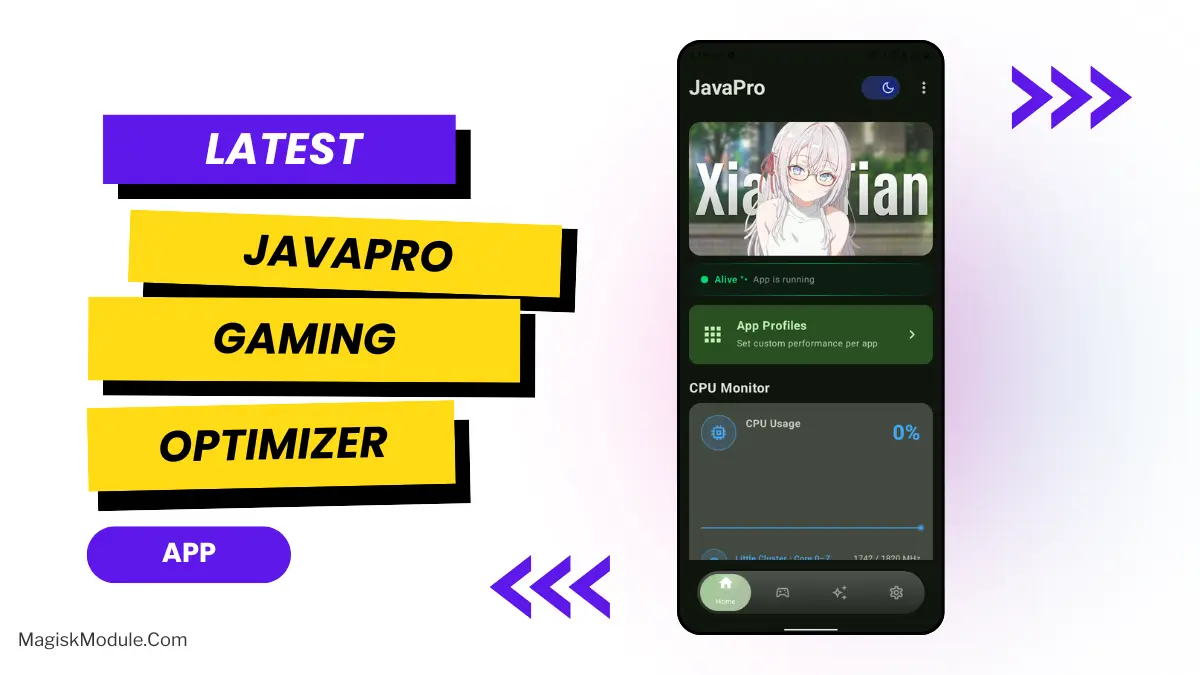
| App Name | JavaPro |
|---|---|
| Size | 6.6MB |
| Version | Final |
| Category | No Root |
| Android requirement | + 6.0 |
| Published By | @Java_nih_deks |
| Rating | 4.9 / 5 |
| Support | All Android |
Get Link
Installation
Root Method
If you already run a rooted setup, the process is even faster. Install the JavaPro APK, open the app, and grant Superuser rights.
Non Root Method
- Get the Ported App.
- How To Install:
- Enable “Unknown sources” in your device’s settings
- Open your device’s file manager
- Find the APK file
- Tap the APK file to install the app
- Confirm the installation
Setup Shizuku
- Get the Shizuku app from the google play store.
- Install the app on your device.
To use Shizuku, you’ll need to enable Developer Options on your device:
- Turn on Wifi
- Go to Settings > About Phone.
- Tap Build Number seven times to unlock Developer Options.
- Then again go to the Shizuku app and tap on Pairing button.
- Go to Developer Option > Enable Wireless debugging from Developer Option.
- Tap Wireless debugging > Pair device with pairing code.
- Copy the wifi paired code.
- Put the wireless pairing code in notification panel.
- [Video Tutorial For Setup Shizuku]
Nobody likes frame drops in their games, especially in competitive matches. While I was still rooting for KingOsiris to make it to the grand finals of the CODM competition here, I am more concerned about achieving frame drops-free performance in games like Free Fire and other Android titles. After many months of testing different configurations, I finally found a combination that works for me, even going so far as to run JavaPro Java Server on my main device.
This app offers root and no root options to modify settings on your Android phone, whether you’ve got a rooted system with Shizuku or just going the no-root route with Shizuku – either way, the app gives you quite the amount of control over your system and its settings. Here’s how I utilize this app to maintain and optimize my phone’s functionality.
Features
I have tried a few of these modules, but this one does the job I needed it to do best.
Performance & CPU
Stop background Java processes from consuming CPU while you are gaming or doing other CPU-intensive activities.
- Force GPU Rendering: Enable this option to have your 2D UI rendered on the GPU instead, it really improves the overall smoothness of the program.
- Disable System Animations: This will stop system animations from adding delay.
- Dex20at Speed: Allows you to compile your apps at increased speed, getting them ready to launch on the spot.
- RAM Management OPT: to prevent certain heavy applications from aggressively closing background applications that you need.
Gaming Mode
This section feels way more engaging during heavy play than the regular time trial mode.
- Touch responsiveness improved greatly, which is very important for this kind of game. I’ve noticed a massive reduction in input delay and it allows for fast flicks and tight circles for accurate aiming.
- Unlock High FPS: This plug-in overrides the stock system limit for FPS, which means you can have even higher FPS on high refresh-rate monitors.
- Disable HW Overlays: This turns screen rendering back to the CPU and immediately stops the random micro-stuttering I got in the middle of fights.
- Disable Thermal: This option allows you to disable thermal throttling in order to help prevent a drop in FPS. Note that this will also increase the internal temperature of your phone and you should be cautious of overheating, especially during extended gaming sessions.
Battery & Power
- Aggressive Doze: Stops battery drain when screen is off by aggressively sleeping your phone as soon as screen is turned off. Helps prolong battery life so you can play more games!
I’ve been running this settings for a while now. Super stable performance. Give it a go.


