To fix a bootloop caused by a Magisk module and remove the module via TWRP, follow these steps:
Step 1: Boot into Custom Recovery (TWRP/Orangefox)
- Power off your device.
- Boot into recovery mode using your device’s key combo (e.g., Power + Volume Up).
- Select Recovery if prompted.
Step 2: Mount Partitions
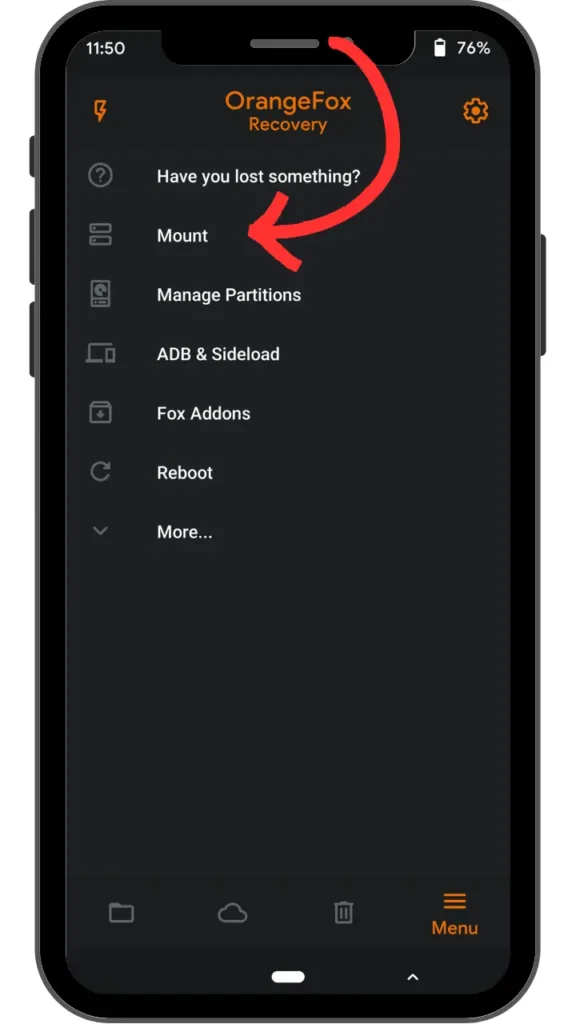
In TWRP/Orangefox, go to Mount.
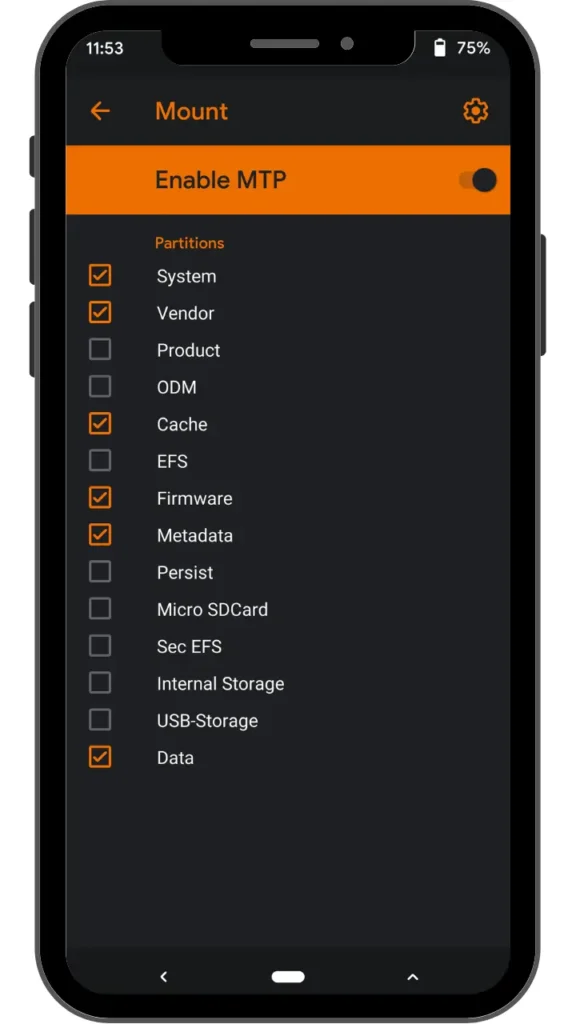
Ensure System, Vendor, and Data partitions are mounted (checkboxes enabled).
Step 3: Remove the Problematic Magisk Module
Go to Advanced → File Manager.
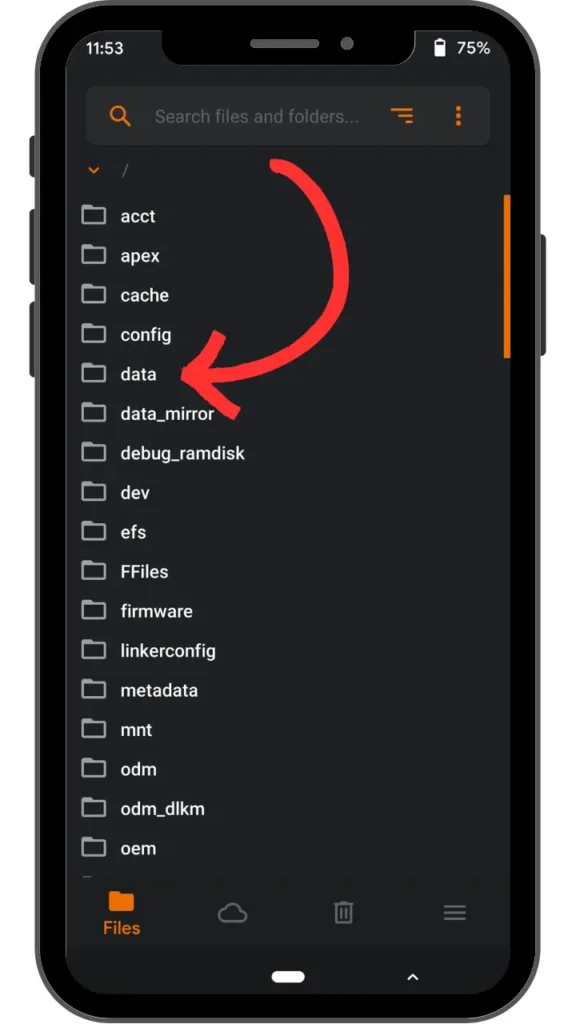
Navigate to:data/adb/modules
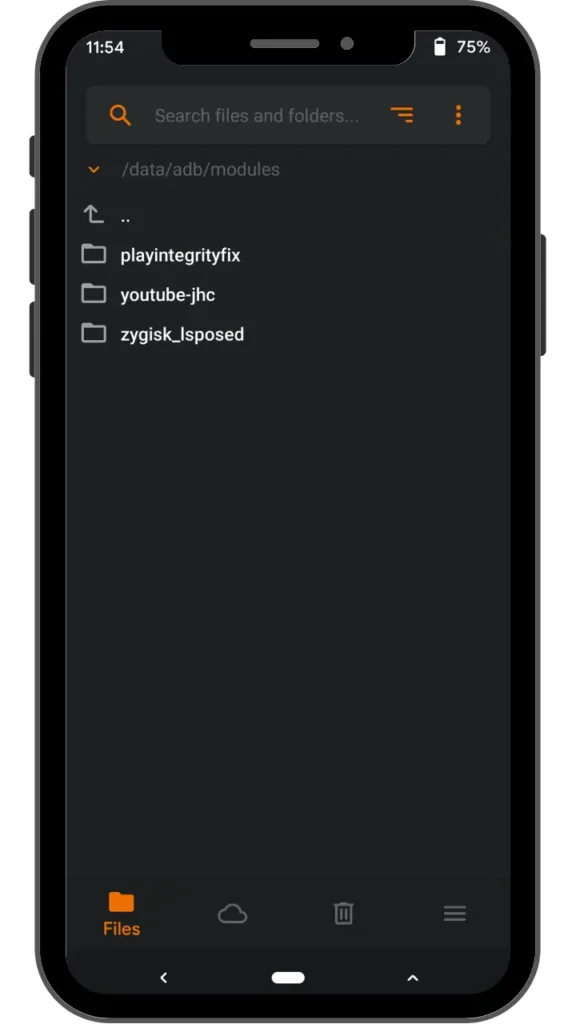
Open the folder of the problematic module (e.g., YouTubeAdAway, FontOverlay).
Delete the entire module folder (e.g., swipe right on the folder → Delete).