| File Name | ROG UI GSI Rom |
|---|---|
| Size | 243.1MB |
| Version | v10 |
| Category | Magisk Modules |
| Android requirement | + 6.0 |
| Published By | @OSXPerience |
| Rating | 4.9 / 5 |
| Price | Free |
Get Link
Step-by-Step Installation:
- Ensure Root Access: The first prerequisite is having root access via a custom recovery.
- Install via Magisk Manager:
- Open the Magisk Manager.
- Tap on the “Modules” section.
- Click “Install from Storage” and locate the geted file.
- Confirm the installation and allow the module to apply the necessary changes.
- Reboot Your Device: After installation, reboot your device to activate the module.
Ever feel your Samsung phone’s OneUI is too plain? You’re not alone. Android customization has become super popular. People want unique looks, better performance, and features that stock software often misses.
ROG UI is a custom ROM that stands out. It’s inspired by ASUS’s Republic of Gamers look. With Magisk, you can make your Samsung device super customizable without needing tech expertise.
In this guide, we’ll show you how to install ROG UI GSI Custom ROM via Magisk on Samsung OneUI devices. You’ll learn how to change your Navigation Bar, icon packs, and boost performance. This tutorial covers everything ROG UI has to offer. Let’s get started!
What is ROG U?
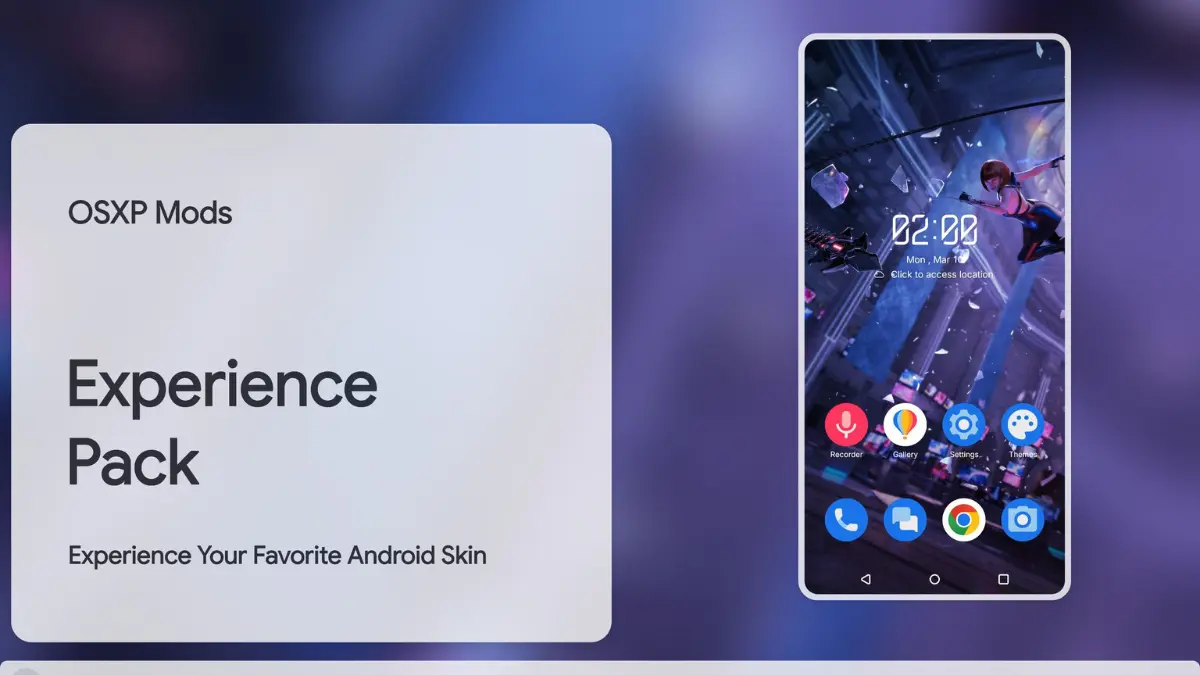
ROG UI is more than just a custom skin. It’s a total redesign inspired by ASUS’s ROG phones. It has neon accents, futuristic boot animations, and icon shapes that look premium. But it’s not all about looks.
ROG UI also improves battery charging efficiency and performance. It comes with unique widgets like a weather tracker with cool visuals.
For Samsung users, flashing a GSI like ROG UI means enjoying these perks without giving up OneUI. Magisk lets you add ROG UI elements to your existing setup. This way, you can keep the OneUI Home Launcher and add ROG UI apps and themes.