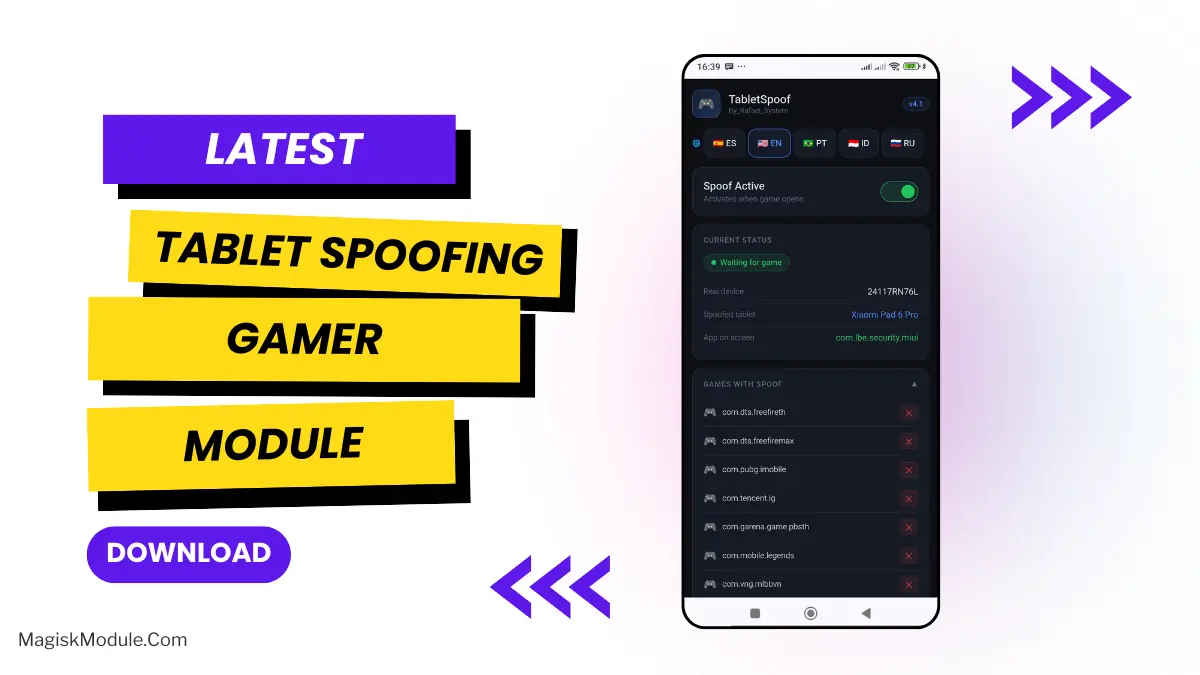
Module Overview
GameUnlocker is an advanced Zygisk module that spoofs your Android device identity at the native level. By modifying system properties before games initialize, it tricks server-side whitelists into recognizing your phone as a flagship device, permanently enabling 90 or 120 FPS.
I've been running this on my daily driver for BGMI, and the performance jump is massive. Because it handles the hardware spoofing at the Zygote fork level using bytehook, it stays completely invisible to user-space anti-cheats while delivering rock-solid frame rates without killing my battery in the background.
Core Features
- Zero battery drain while idle, thanks to a native C++ daemon that only activates when you actually launch a targeted game.
- Assigning specific profiles to individual games is incredibly easy using the dynamic routing engine (e.g., spoof a Pixel for Genshin and a RedMagic for CODM).
- Invisible to anti-cheat engines because the PLT bytehooking intercepts property reads before the game even knows what hit it.
- Built-in WebUI management lets you handle all your app lists and routing rules straight from KernelSU or APatch.
Supported Games
The module comes pre-configured to automatically unlock graphics and maximum frame rates for 30+ major mobile titles, including:
- Battle Royales: PUBG Mobile (Global, KR, BGMI, VN, TW), Call of Duty: Warzone Mobile, Free Fire / Free Fire Max, Farlight 84, and Apex Legends (CPU spoof only).
- MOBA & RPGs: League of Legends: Wild Rift, Mobile Legends: Bang Bang, Genshin Impact, and Tower of Fantasy.
- Casual & Strategy: Brawl Stars, Clash of Clans, Squad Busters, and Diablo Immortal.
Note: Any unlisted game will automatically fall back to the default flagship profile (Samsung Galaxy S24 Ultra) to try and force maximum settings.
Support & Requirements
- Android Version: Android 9.0 and up (API 27+)
- Root Access: Magisk (v24.0+), KernelSU, or APatch
- Dependencies: You must use a standalone Zygisk implementation (like ZygiskNext). The built-in Magisk Zygisk is intentionally unsupported due to patching conflicts.
How to Install
- Download the latest
GameUnlocker_v*.zipfile directly to your phone storage. - Flash the module using your preferred root manager (Magisk, KernelSU, or APatch).
- Reboot your device to activate the standalone Zygisk hooks.
Rate this Module
Share your experience with the community.
* You will be prompted to login via Google in one click to verify your rating.