| File Name | Specter |
|---|---|
| Size | 170KB |
| Version | v2.6 |
| Category | AxManager Plugin |
| Android requirement | + 6.0 |
| Published By | @sxSoleum |
| Rating | 4.9 / 5 |
| Install Via | AxManager |
Get Link
How to Use?
- Active AxManager: First, you need to make sure it is active.
- Install via AxManager:
- Open the AxManager.
- Tap on the “Plugin” section.
- Click “Install from Storage” and locate the geted file.
- Confirm the installation..
- Reboot Your Device After installation.
How to Active AxManager?
To use AxManager, you’ll need to enable Developer Options on your device:
- Turn on Wifi
- Go to Settings > About Phone.
- Tap Build Number seven times to unlock Developer Options.
- Open the AxManager, Click “Need To Active”.
- Enable Notification & Click Start Button.
- Click Wireless debugging & Enable Wireless debugging.
- Click Pair device with pairing code.
- Click on “Enter Pairing Code” above and paste the WiFi pairing codes there.
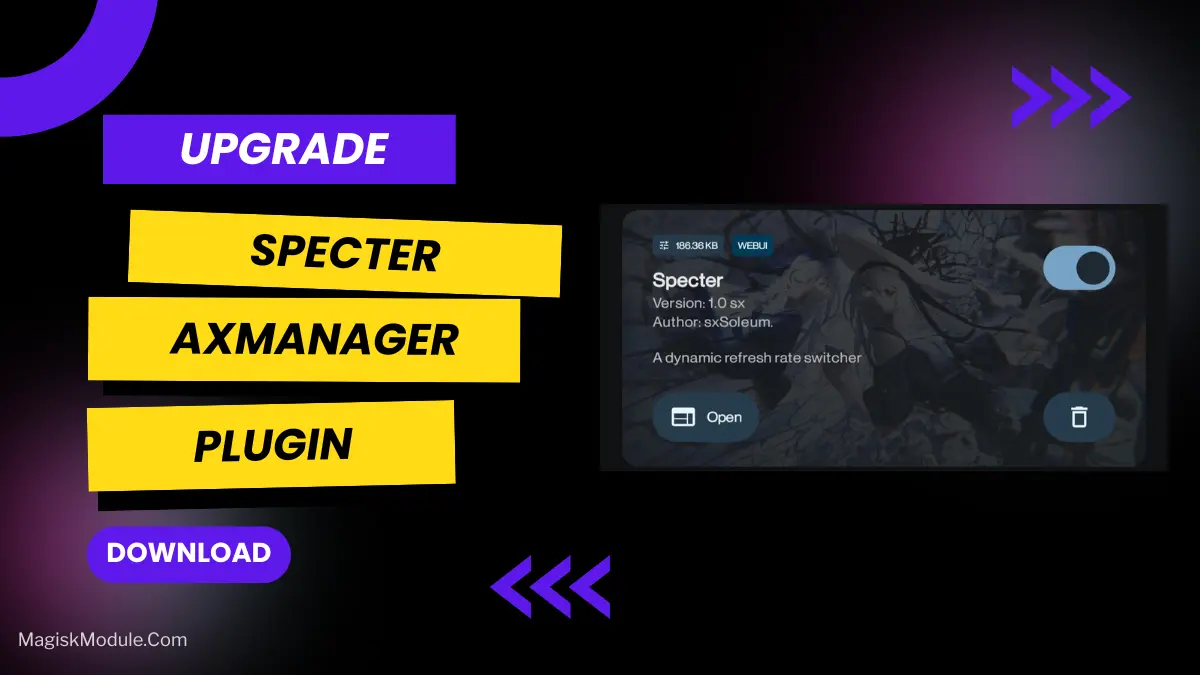
Why does your phone screen jitter like it’s drunk on coffee? You pay for that 120Hz screen and maybe it hits 90Hz on a good day. I feel you. I tried the Specter AxManager Plugin.
Not magic but magic. A plugin to help control your refresh rate. This refresh rate plugin acts as a screen’s coach, training it not to be lazy.
What Does This Plugin Actually Do?
Its main goal is to reduce the frequency of those inevitable HZ dips. So, here are the issues it attempts to address:
- Unlock a higher refresh rate on some devices (if your hardware supports it).
- Force a constant refresh rate for a smoother, consistent UI.
- Reduce refresh rate drops during gaming, so gameplay feels more stable.
- Improve touch response and screen fluidity.
- Enhance scrolling smoothness across all your apps.
- Stabilize FPS and refresh synchronization to reduce visual hiccups.
My Quick Test Drive
I tested it on a mid-range smartphone with a reputation for being quite aggressive with its power-saving performance. I found the result to be fairly subtle, but very noticeable. Scrolling through the feeds of social media apps feels a lot less fighty, almost as if the phone has stopped battling itself over what amount of CPU power to give to the animation.
Note that adjusting the refresh rate constantly to run at its highest value will consume more battery life, and in fact should consume more battery life as the display’s energy consumption is not strictly linear with regard to frequency. But now you have the option to control that. Battery life will have to be given up to some extent in order to get a smoother experience.
Is It Worth It?
If you’ve got a high refresh rate display on your phone but somehow managed to mess up the frequency handling in the software, Specter might be able to help you out. Other than that, it’s really a feature for power users. Bear in mind that it will only yield marginal gains, as the actual performance potential of your hardware will always be the limiting factor here. This patch will at least allow your hardware to be used in a more consistent fashion.
FAQ
Is the Specter plugin safe to use?
Generally, yes. It’s a systemless AxManager module, so it doesn’t permanently alter system files. But as with any mod, there’s a small risk of bugs or conflicts.
Will it work on any phone?
No. It primarily works on devices with adaptive refresh rate screens (90Hz, 120Hz, etc.) and requires AxManager to be functioning correctly on your device.
Do I need root to use it?
Not necessarily. If you’re using AxManager without root (via Shizuku), you can install it that way. Root is not a strict requirement.