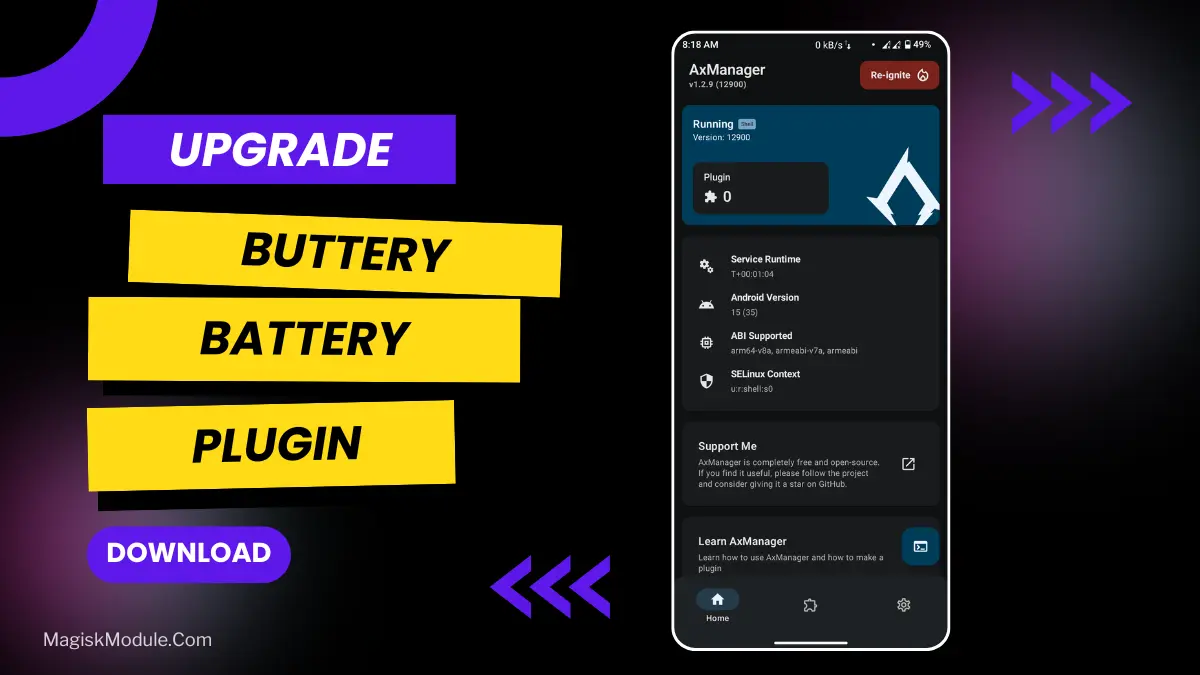
Buttery Battery AxManager Plugin

Buttery Battery AxManager Plugin

@MelanieMari
5.0(0 ratings)
46 Downloads
2.0Version
301KBSize
AxManager PluginCategory

About this module

**

AxManager

How to Use?**

  • Active AxManager: First, you need to make sure it is active.
  • Install via AxManager:

Open the AxManager.

  • Tap on the “Plugin” section.
  • Click “Install from Storage” and locate the geted file.
  • Confirm the installation..
  • Reboot Your Device After installation.

How to Active AxManager?

To use AxManager, you'll need to enable Developer Options on your device:

  • Turn on Wifi
  • Go to Settings > About Phone.
  • Tap Build Number seven times to unlock Developer Options.
  • Open the AxManager, Click “Need To Active”.
  • Enable Notification & Click Start Button.
  • Click Wireless debugging & Enable Wireless debugging.
  • Click Pair device with pairing code.
  • Click on "Enter Pairing Code" above and paste the WiFi pairing codes there.

This little plugin is named for “battery anxiety,” the fear of having your phone run out of juice exactly when you need to view its contents. Okay, so it’s not the most pressing concern of all time, but serious travelers wouldn’t want their phone to suddenly die at exactly the wrong moment. Of course, most of us can’t exactly stuff our batteries into our wallets, but with a little tweaking, your phone can run just as long on the same battery, and that’s nothing to sneeze at. Called Buttery Battery, the new plugin for TourBar’s AxManager is a “ patented technique that encourages mobile computer batteries to last longer.”

Does exactly what it says on the tin, it’s a no root solution to the power consumption issue on the software side of things. It’s an energy accountant and it finds places where you looses little amounts of power and stops it. This is a plugin, and it can also be used to boost performance by optimal battery using when in game.

Features

So what does it do?:

• Optimizes battery usage for longer screen-on time.

• Reduces background power drain intelligently.

• Enhances gaming performance with balanced battery efficiency.

• Stabilizes CPU and GPU power consumption.

• Improves standby battery life significantly.

• Manages power smartly during heavy gameplay.

• Minimizes overheating and thermal throttling.

• Boosts overall system responsiveness efficiently.

• Extends battery health with optimized charging behavior.

I tested on a mid-range smartphone dropping around 20% overnight whilst idle. After applying the changes, I saw battery life drop around 8% (so still not perfect, but an extra 12% of life which is still pretty handy in the morning) and the phone seemed to run a tad cooler whilst idling and under load (during a video call for example).

AX Manager installs simply via the supplied CD, via disk image or from a networked share drive, and via http, https, ftp or sftp URL, and will magically tune and optimise your AX system after installation. AxManager is provided as a separate application so that the tunnelling process can be left to run unattended in the background whilst you get on with your day job. Simple installation is achieved via the intuitive interface provided by the AxManager application. To install the ax manager simply follow the prompts, peel off the appropriate number of stickers and apply wherever recommended.

Don’t expect it to help a battery that’s already beyond its physical prime, say, if you’re still rocking a few-year-old notebook. But for people with somewhat healthier batteries seeking a bit more efficient usage from their devices, this is a useful new trick in your bag.

**Thanks for your attention! Bye

Special thanks to:**

-Hoyoslave

-Reljawa

-Koneko

-Kazuyoo

FAQ

How does the Buttery Battery plugin work without root access?

It uses the accessible system permissions within the AxManager framework to adjust software-level power management settings, like limiting wasteful background processes, without needing deep root access.

Will this slow down my phone to save battery?

Not from my experience. Its goal is balanced efficiency, trying to save power without killing performance. Features focus on reducing wasteful drain, not underclocking your core speed during normal use.

Rate this module

More from @MelanieMari

View all
Crocus Vernus

Crocus Vernus is a lightweight, reversible tuning module that makes your device noticeably smoother and more responsive during gaming and multitasking. Enjoy a more responsive gaming and multitasking experience through intelligent adjustment of system parameters in the kernel and memory. Developer: @illumi

118Root Modules
By @bot
Abandon Engine

Step-by-Step Installation: - Active AxManager: First, you need to make sure it is active. - Install via AxManager: Open the AxManager. - Tap on the “Plugin” section. - Click “Install from Storage” and locate the geted file. - Confirm the installation.. - Reboot Your Device After installation. How to Active AxManager To use AxManager, you'll need to enable Developer Options on your device: - Turn on Wifi - Go to Settings > About Phone. - Tap Build Number seven times to unlock Developer Options. - Open the AxManager, Click “Need To Active”. - Enable Notification & Click Start Button. - Click Wireless debugging & Enable Wireless debugging. - Click Pair device with pairing code. - Click on "Enter Pairing Code" above and paste the WiFi pairing codes there. This is a file for AxManager. It’s not a Magical wand but a way to organize your phone by sleeping some non-essential system processes just like the above post said and that will help improve your battery life without rooting your Infinix, Tecno, itel and other Android phone. Features: - The file is compatible with Infinix, Tecno and itel smartphones. - Limited alterations to standard setup to maintain optimum performance and stability. - Improves system handling without heavy, complex tweaks. - Works seamlessly with stock Transsion ROMs. - Low usage of system resources to preserve your battery and daily performance. - Simply Enabled/Disabled through the AxManager program. - Reduces unneccessary background usage of phone resources.

244AxManager Plugin
Mitsu Battery Angel

How to Use Root Users? - Ensure Root Access: The first prerequisite is having root access via a custom recovery. - Install via Magisk Manager: Open the Magisk Manager. - Tap on the “Modules” section. - Click “Install from Storage” and locate the geted file. - Confirm the installation and allow the module to apply the necessary changes. - Reboot Your Device: After installation, reboot your device & KSUWebUi Recommended to activate this. The Mitsu Battery Angel is a lightweight background utility module designed to extend device screen-on time and manage power efficiency. It actively scales CPU frequency and restricts background app drain to improve overall thermal management and standby longevity. I've been running this for the last few weeks to see if it actually replaces carrying a heavy power bank everywhere I go. My phone easily pushes through a full day of heavy scrolling and messaging, dropping significantly less charge while sitting idle overnight. - Cuts down CPU activity to keep power consumption strictly under control. - Aggressive background restriction stops sneaky apps from draining your charge while the screen is off. - Better thermal management keeps the hardware running cool during extended daily use. - Dramatically improves standby time, meaning you lose fewer percentages overnight. - A lightweight footprint ensures the tool itself does not hog valuable system memory. - Supports long-term health by balancing active performance with deep battery savings. If you are tired of constant battery anxiety, applying this via your root manager or AxManager is an absolute no-brainer. It gives your device the extra endurance it needs without suffocating basic performance.

168Root Modules
Bnoop Boost | BBoost

Step-by-Step Installation: - Active AxManager: First, you need to make sure it is active. - Install via AxManager: Open the AxManager. - Tap on the “Plugin” section. - Click “Install from Storage” and locate the geted file. - Confirm the installation.. - Reboot Your Device After installation. How to Active AxManager To use AxManager, you'll need to enable Developer Options on your device: - Turn on Wifi - Go to Settings > About Phone. - Tap Build Number seven times to unlock Developer Options. - Open the AxManager, Click “Need To Active”. - Enable Notification & Click Start Button. - Click Wireless debugging & Enable Wireless debugging. - Click Pair device with pairing code. - Click on "Enter Pairing Code" above and paste the WiFi pairing codes there. Changelog >> - Add Downscale Factor (App Only) - Add FPS / Hrz Scale - Adjust Game set-fixed-performance logic - Add power save (Adjustable) logic - Add some tweaks OEM and MIUI flags (OEM flags still testing) - Add clear button for Check log window Features - Acts as an Android RAM cleaner, freeing up precious memory so your system can breathe. - Works to improve CPU efficiency, making sure your processor isn't wasting effort on pointless tasks. - Gives your Android performance a major optimization, smoothing out the overall experience. - Helps speed up the Android GPU, which means smoother visuals and scrolling. - Automatically clears out those resource-hogging background apps you forgot were even running. - The final result? A seriously improved Android phone speed. Everything feels zippier and more responsive. Developer: @Brains82

282AxManager Plugin

Comments (0)