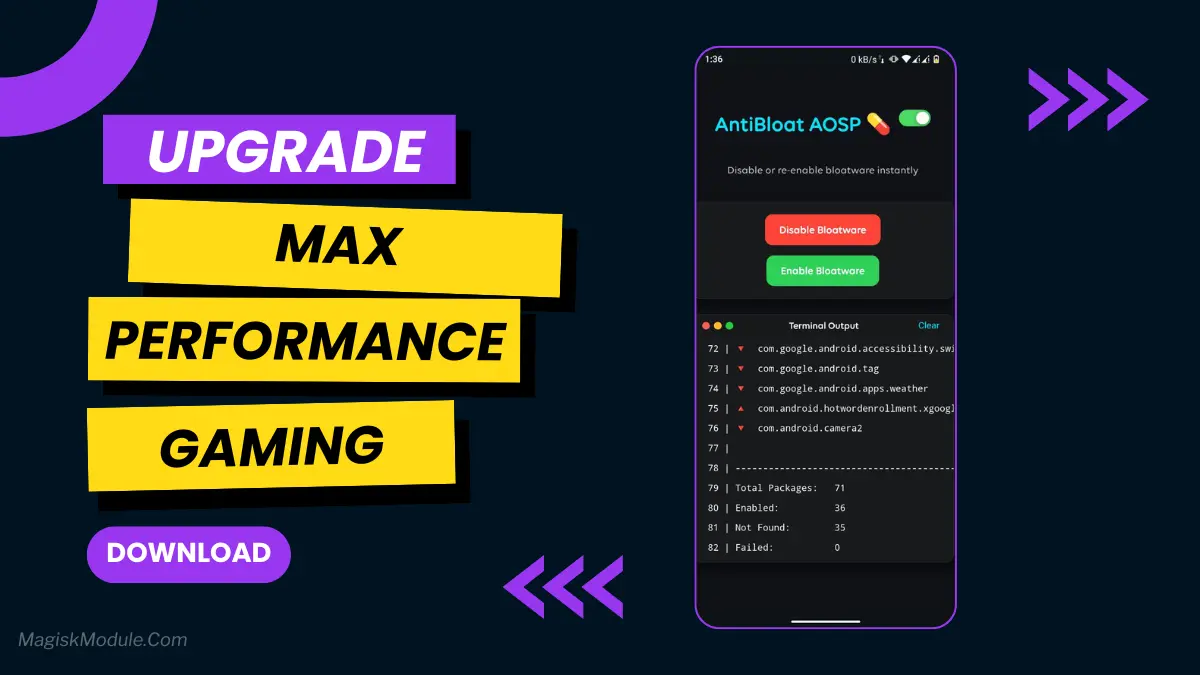
AntiBloat AOSP Magisk Module: Disable Unwanted Apps
Developed by @𝗠𝗘𝗢𝗪𝗻𝗮
## Step-by-Step Installation:
-
Ensure Root Access: The first prerequisite is having root access via a custom recovery.
-
Install via Magisk Manager:
Open the Magisk Manager.
-
Tap on the “Modules” section.
-
Click “Install from Storage” and locate the geted file.
-
Confirm the installation and allow the module to apply the necessary changes.
-
Reboot Your Device: After installation,** reboot your device** to activate the module.
How To Disable Bloatware Apps
- Open the Magisk Manager.
Tap on the “Modules” section.
-
Press the Action button.
-
Then press the + Vol button.
-
Now enjoy the Performance of your device.
Changelog
-
Replaced Key Checker with Flag Checker
-
Merged WebUI scripts & Action script in one script
-
Redesigned WebUI with card based UI
-
Improved live terminal logging
-
Whitelisted Pixel Launcher components
-
Fixed WebUI compatibility with MMRL
-
Dropped meow helper activity dependency for popups
Even on a brand new phone, bloatware can completely ruin your experience. That’s how I felt after opening up my brand-new Samsung Galaxy S23 only to be greeted by Facebook Lite, Netflix, and three app stores. While in the past there were numerous methods to attempt to remove bloatware (most of which stopped working a long time ago), thanks to a simple Magisk module, my brand-new S23 is finally bloatware-free after years. The AntiBloat AOSP Magisk Module.
This guide removes bloatware, to make your Android more streamlined and faster. Getting the best out of your phone.
What is the AntiBloat AOSP?
“Digital Bouncer” is a common term when people describe a bouncer for night clubs. The bouncer kicks people out he doesn’t want in the club, and that is essentially what this AntiBloat AOSP Magisk Module does. Unlike a lot of other apps out there, this tool targets rooted Android phones and deletes system apps that users never asked for. The best part is that this module will prevent these apps from even starting up after the deletion process is complete.
AntiBloat works on Xiaomi phones via the Mi Catalyst app, which needs to be installed first. I had 18 apps installed on my Xiaomi Redmi Note 12, including Instagram and Facebook, which took up 5GB of storage space and ate up 200MB of RAM. But AntiBloat cleaned all that up, creating space on my phone’s storage and boosting up RAM by up to 20 per cent. So now I can enjoy Genshin Impact smoothly on my mid-range device.
Features & Benefits
1. One-Tap Bloatware Disabler
Unlike with other firmware, you don’t have to go hunting through options to disable unwanted apps. They’re categorized and one tap of a button disables them permanently. I removed Samsung’s Global Goals app - glad I didn’t have to pay a subscription to keep it off my phone.
2. Safe App Disabler with Warnings
Like many apps, some are more important than others. AntiBloat is one of the latter. It alerts you to the fact that Google Play Services is running and lets you decide whether or not you want to disable it. When I attempted to disable Android Auto, the app warned that this could potentially disable other connectivity features.
3. RAM Saver & Battery Booster
Bloatware is running in the background & the AntiBloat app stops it from running in the background. From 6 hours of screen time on my heavily bloat loaded Pixel 7a to 8.5 hours of screen time!
4. Storage Cleaner & Lag Reducer
There are a lot of pre-installed apps, taking up a lot of space. After I have removed LinkedIn and Microsoft Office from the Motorola G Power, the smartphone runs a lot smoother.
5. Restore Disabled Apps Easily
AntiBloat also stores backups of disabled apps, so if you need an app back (like Samsung’s now-omitted but still useful S Health), you can easily re-enable it without having to go through a factory reset.
AntiBloat AOSP vs. Other Modules
You may have already heard of tools like Debloater or System App Remover, but AntiBloat is better than both of them.
-
Deeper Access: This feature allows you to disable specific apps that reside on the system partition, something that most other root management programs are unable to do.
-
AOSP compatible: The build should work on Stock Android and custom ROMs like LineageOS 21 where I successfully compiled and installed the firmware.
-
User-Friendly: The design is much better than alternatives such as Titanium Backup.
I tried App control on my Sony Xperia with SD Maid but after a software update all apps worked again. AntiBloat does a much better job at this!
Final Thoughts
Your phone may be feeling a little heavy lately, like it’s been fitted with digital ankle weights. If that’s the case, then I highly recommend checking out the AntiBloat AOSP Magisk Module. It’s a bit of work to flash, but it’s well worth the storage you’ll gain back.
Rooting your Android phone will strip the warranty, and by removing some core applications you may be putting your phone at risk of becoming useless if you misuse it in some way, but in the meantime you’ll be enjoying the fact that you no longer have to constantly battle against what most of us consider to be useful programs. As with any app, when you decide to remove bloatware make sure you have it backed up and be sure you understand exactly what its function was prior to deactivating it. Some apps cannot be uninstalled but can be disabled and that may be enough to stop them from nagging you.