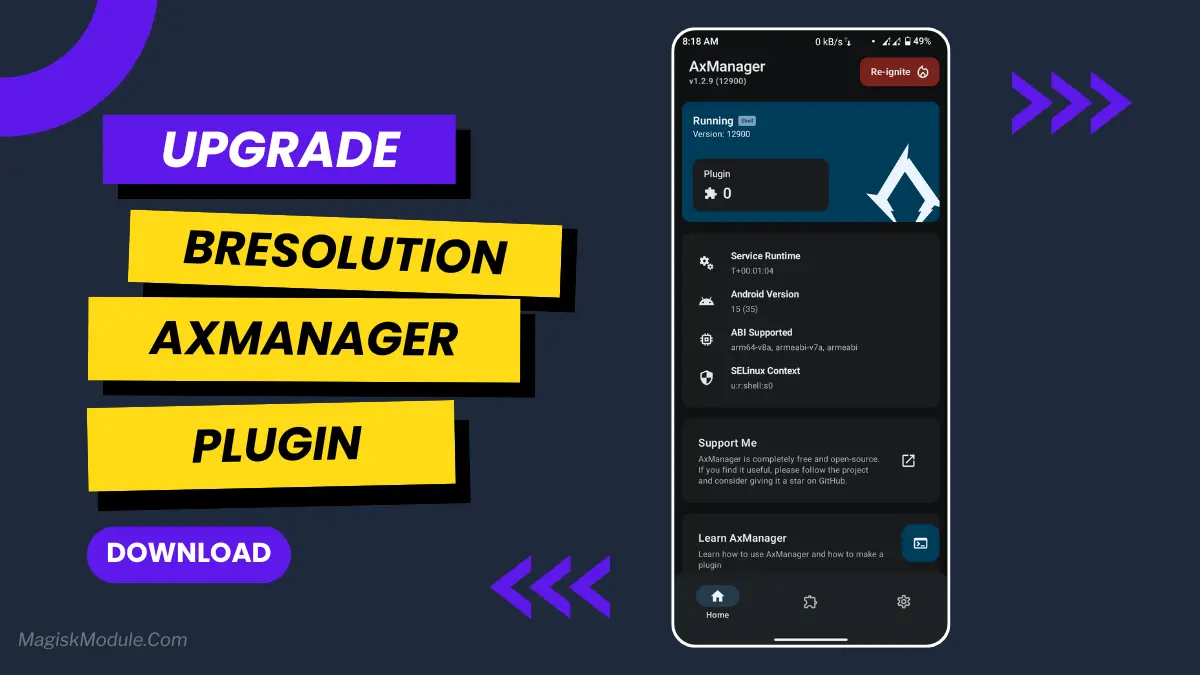
| File Name | Bresolution |
|---|---|
| Size | 359KB |
| Patch Update | 21112025 |
| Category | AxManager Plugin |
| Android requirement | + 6.0 |
| Published By | @Brains82 |
| Rating | 4.9 / 5 |
| Install Via | AxManager |
Get Link
How to Use?
- Active AxManager: First, you need to make sure it is active.
- Install via AxManager:
- Open the AxManager.
- Tap on the “Plugin” section.
- Click “Install from Storage” and locate the geted file.
- Confirm the installation..
- Reboot Your Device After installation.
How to Active AxManager?
To use AxManager, you’ll need to enable Developer Options on your device:
- Turn on Wifi
- Go to Settings > About Phone.
- Tap Build Number seven times to unlock Developer Options.
- Open the AxManager, Click “Need To Active”.
- Enable Notification & Click Start Button.
- Click Wireless debugging & Enable Wireless debugging.
- Click Pair device with pairing code.
- Click on “Enter Pairing Code” above and paste the WiFi pairing codes there.
You know that moment when you’re playing a game, and everything just looks a little… blurry during a fast-paced action scene? It drives me crazy. I’d trade a tiny bit of battery life for crystal-clear visuals any day. That’s the whole idea behind the Bresolution Module.
Auto change screen resolution scale while gaming and revert if idle, Apply Sf offset duration based on screen and fps.
It basically gives your display a serious upgrade without needing new hardware. We’re talking about making your screen sharper, your animations smoother, and saying goodbye to those annoying stutters.
Here’s the lowdown on what it does:
- Crisper, cleaner visuals
- Buttery-smooth FPS
- No more frame drops
- Dynamic resolution scaling
- Better color and clarity
- Optimized GPU usage
Honestly, once you get used to the smoother, sharper image, it’s hard to go back. It’s a simple way to make your everyday screen look absolutely premium.