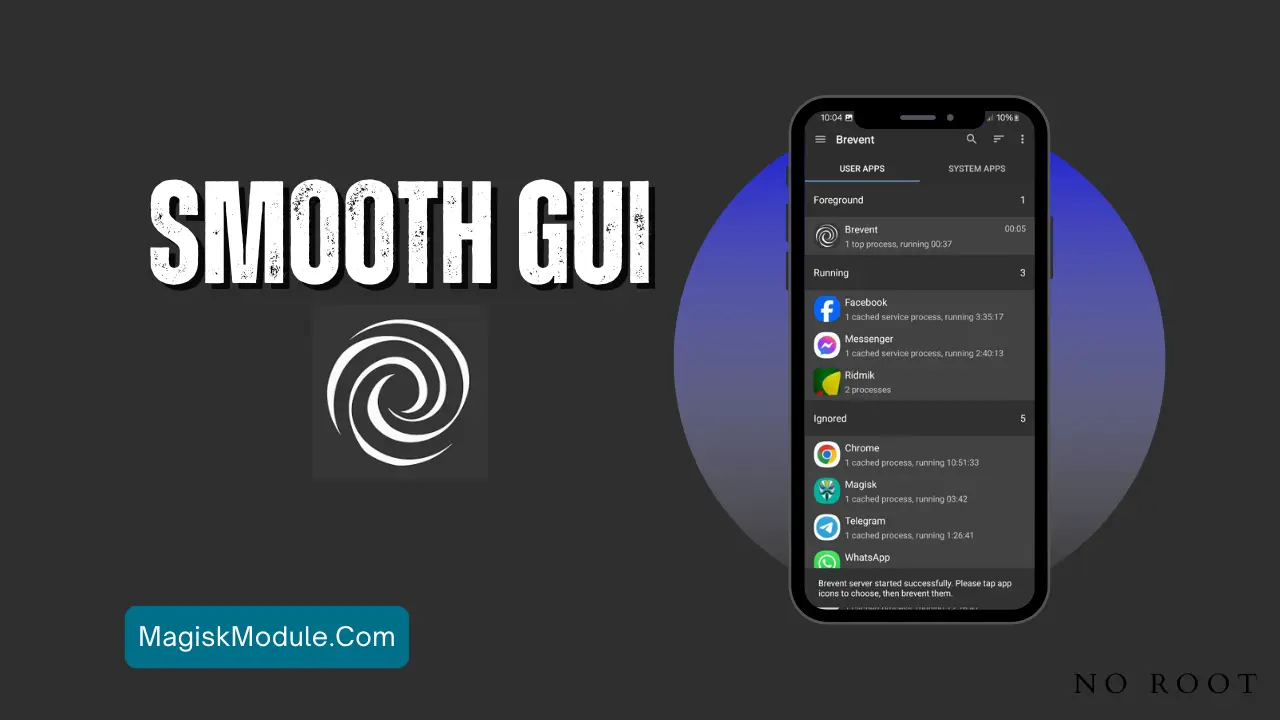
| File Name | Smooth GUI |
|---|---|
| Size | 1.5KB |
| Version | Final |
| Category | No Root |
| Android requirement | + 6.0 |
| Published By | ©SukitooV1 |
| Rating | 4.9 / 5 |
| Support | Brevent/QUTE |
Get Link
Step-by-Step Installation:
Getng Brevent App
- Get the Brevent app from the google play store.
- Install the app on your device.
How to setup Brevent app on your device
To use Brevent, you’ll need to enable Developer Options on your device:
- Turn on Wifi
- Go to Brevent App
- Tab on Developer Option
- Tap on
- Go to Settings > About Phone.
- Tap Build Number seven times to unlock Developer Options.
- Navigate to Settings > Developer Options and enable USB Debugging.
- Enable Wireless debugging from Developer Option.
- Then again goto the brevent app and tap on wireless
debugging port. - Split Screen 1.Developer Option and 2.Brevent app
- Goto Wireless debugging and tap on Pair device with pairing code from Developer Option..
- Copy the wifi paired code.
- Put the wireless pairing code in Brevent app and tap on wireless pair
- [Tutorial For Setup Brevent]
How to install the module?
- Get the module on your android.
- Open the Zarchiver app
- Extract the Geted zip file and put the folder on internal storage.
- Go to Brevent or QUTE app and tap on Exec command from left site.
- Command: Now put on the installation command.
Installing Command
sh /sdcard/Kazu/install.shUninstall Command
Get the command txt inside the Geted zip fileImagine you’re in a battle royale, your team is counting on you, and then lag hits. Your screen freezes, and your chance at victory slips away. For mobile gamers, a smooth experience is essential, not just a luxury.
But what if you could eliminate stutters, boost frame rates, and make apps load faster without rooting your device? In this guide, we’ll explore actionable strategies to optimize your phone’s UI, leverage hidden settings like Force DEX optimization and Setprop smooth UI, and unlock the full potential of your device’s hardware.